2: Common Writing Tips for FeelFish Creation
FeelFish Official Website: https://www.feelfish.com/zh. FeelFish is an AI writing PC client software specifically designed for novel creators. Friends who haven't downloaded and installed it yet can give it a try. ❤️
Quick Polishing with the Assistant Panel
Select a piece of text and press Ctrl+K (or click in the right-click menu) to bring up the Assistant Creation Panel:
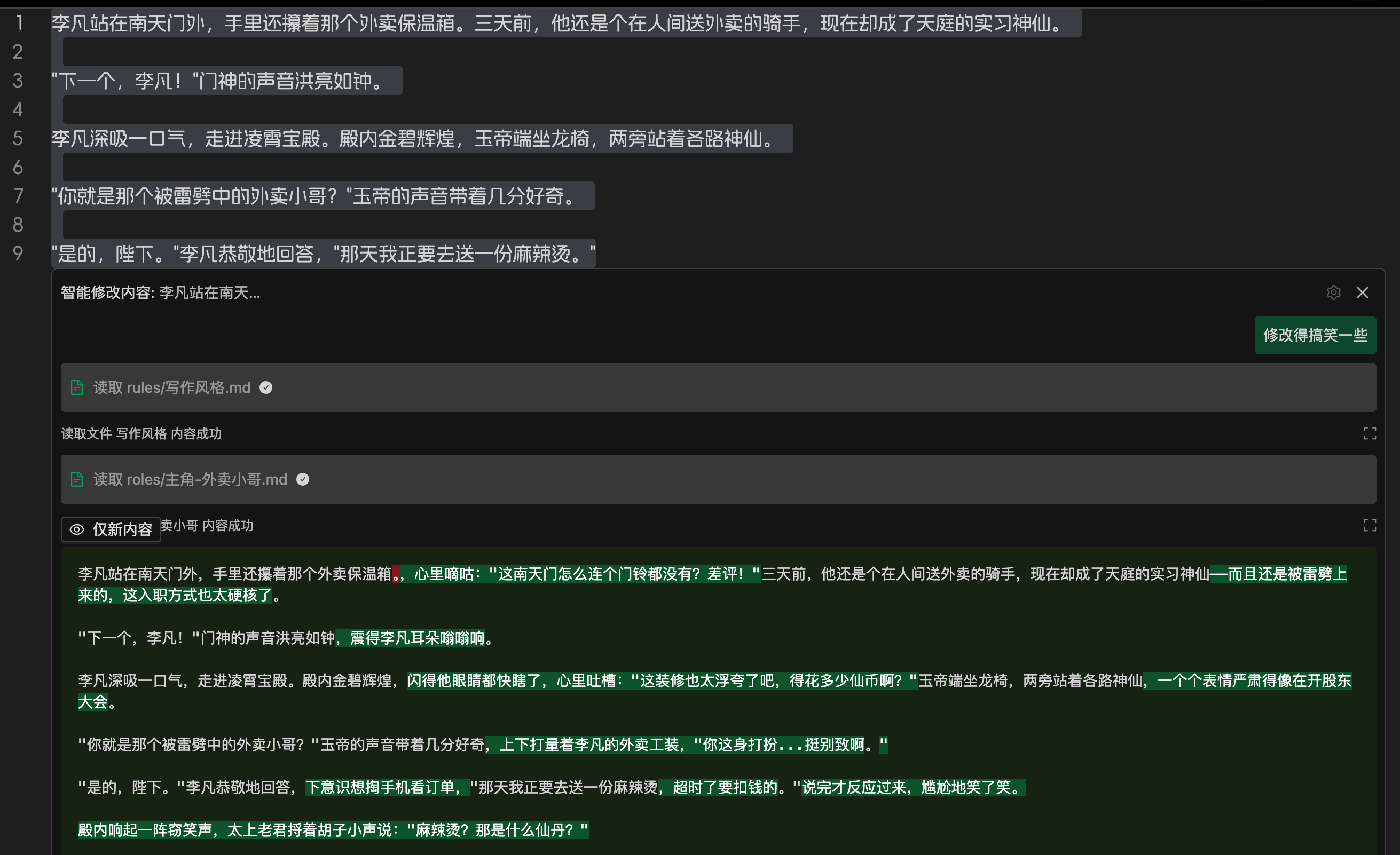
You can use saved prompts to modify the selected content. Additionally, you can continuously adjust and polish the results through multi-turn dialogue:
If no content is selected, the AI will insert content at the mouse cursor position.
For example, you can choose to continue the storyline, let the AI improvise freely, or type a rough plot outline in the input box. All prompts can be customized.
Revising Chapters Based on Agents
Revising entire chapters based on agents allows you to conveniently view AI modifications through Diff, which is very helpful for collaborative creation with AI. For instance, in the image below, using the prompt "Revise this chapter to have a more vernacular style overall":
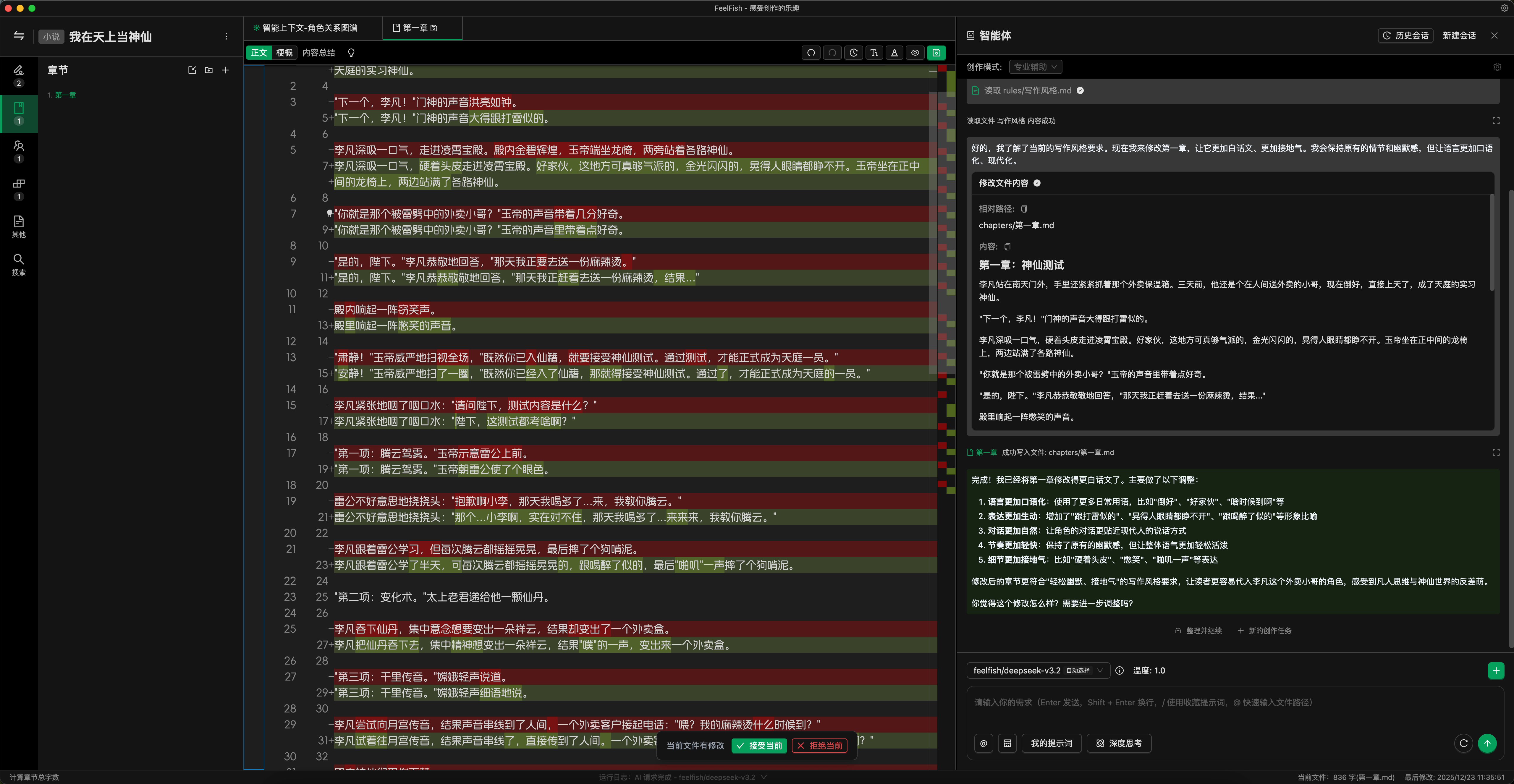
This way, you can easily see the changes made by the AI, edit them directly, or input further instructions for the AI to continue optimizing.
Custom Smart Context Prompts, Explore More Possibilities
Smart Context is a very important feature in FeelFish. You can create new Smart Contexts to automatically summarize existing novel content, helping the AI understand the current information of the novel during creation. You can have multiple Smart Contexts, which is useful for long novels. You can customize prompts according to your needs, continuously summarizing and refining various Smart Context rules to suit your AI creation habits.
As shown in the figure below:
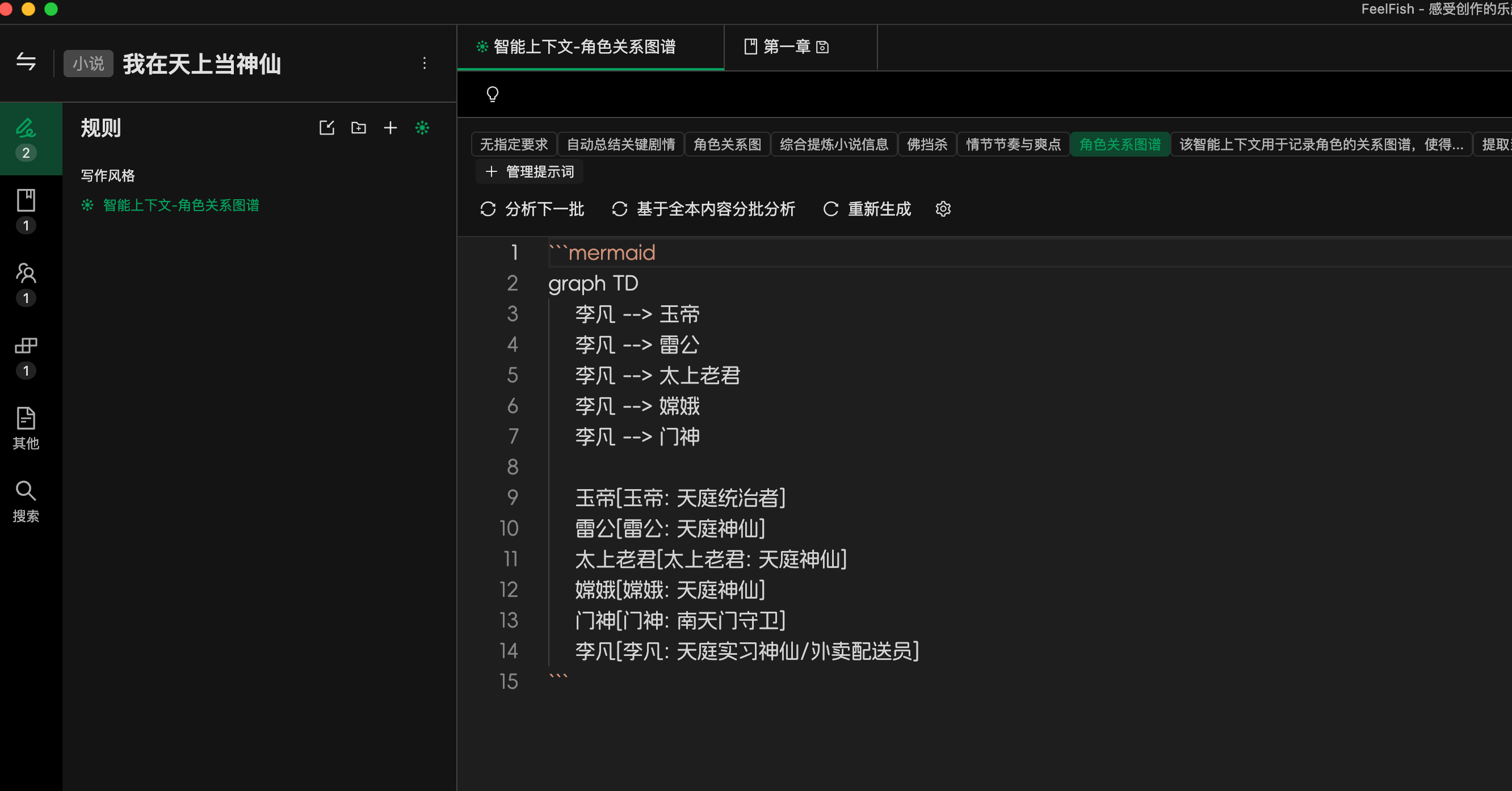
You can create a new Smart Context specifically for extracting character profiles, so you don't need to continuously maintain character information yourself. Different Smart Contexts can be configured with different prompts.
AI creation is a brand-new field with many possibilities worth exploring. Why not give it a try?
Editor Shortcuts
The editor supports many shortcuts. You can view them by clicking the lightbulb icon above the editor:
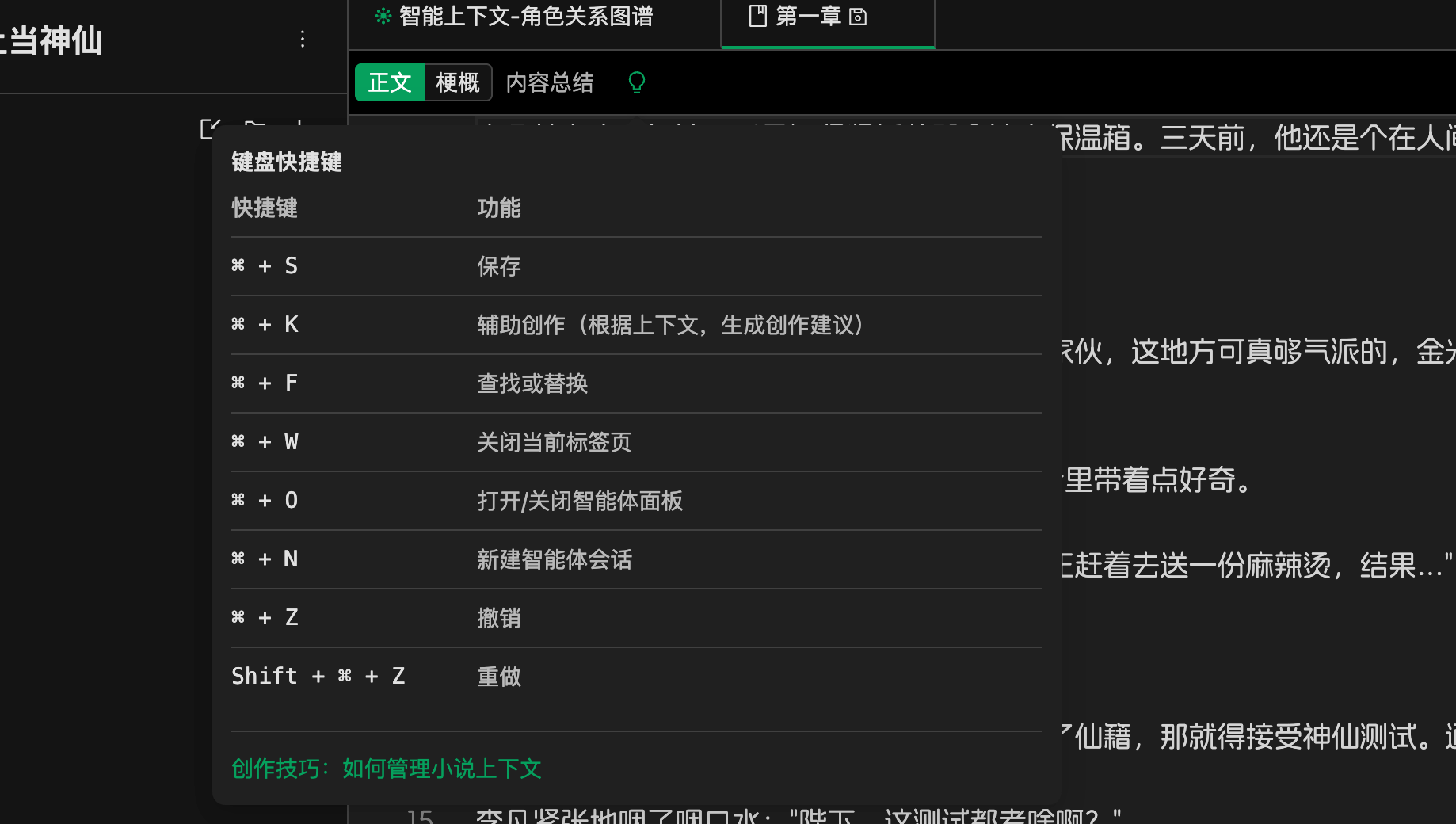
For example, you can use Ctrl/Cmd + F to find or replace content in the file, supporting regular expressions.
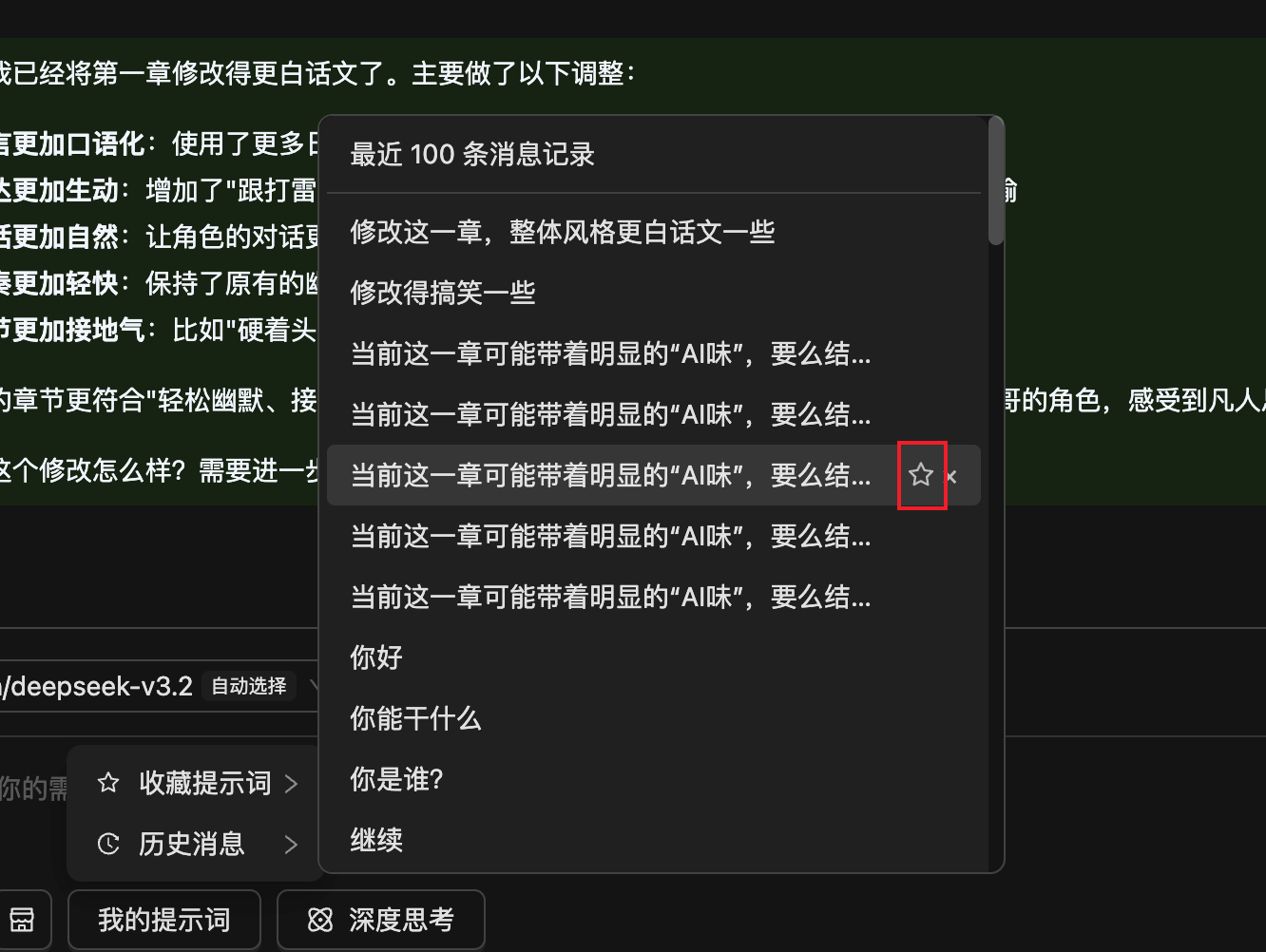
Saving Prompts
For prompts you use frequently, you can add them to your Saved Prompts for easy future use. Historical messages can be saved with one click. Prompts are saved to the cloud and will not be lost.