
Creative Techniques: Knowledge Base, Cloud Storage, and Semantic Search
After version 2.13.0, FeelFish has added support for cloud storage ☁️, knowledge base 📚, and semantic search 🔍. These features are currently available only to Premium and Professional members 💎.
Using Cloud Storage to Sync Across Multiple Devices 🔄
By linking a cloud project, you can sync local files to the cloud and download cloud content to your local device.
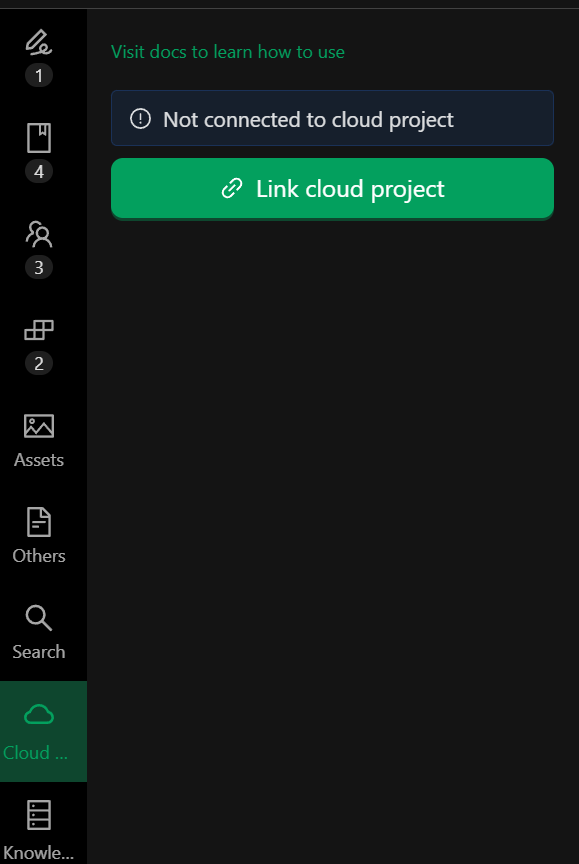
As shown above, click "Link Cloud Project" to bind a local project to a cloud project 🔗.
Now, create a cloud project and link it on your first dev
Then, sync the content to the cloud ⬆️
After syncing, chapters, characters, rules, settings, as well as chat history and current messages, will all be synced to the cloud.
On a new device, link the previously created project and sync, or you can directly import from the cloud and then sync:
After syncing, you can view the sync status and enable auto-sync 🔄.
Knowledge Base and Semantic Search 📚🔍
Projects synced to the cloud will automatically enable semantic search and can be added as a knowledge base to other projects.
What is semantic search? 🤔
With traditional search, you can only search for specific keywords within the content, but semantic search allows you to search based on questions, such as "How old is Lin Yi?"
As shown above, projects synced to the cloud undergo semantic analysis on the cloud, enabling search based on content. In addition to you being able to perform semantic searches, the AI agent 🤖 will also search for relevant content when needed.
However, please note ⚠️ that after files are uploaded to the cloud, it may take anywhere from tens of seconds to a few minutes for content analysis to complete before searches can retrieve results. Also, only text content within 100KB (approximately 30,000 words) will be indexed, so try to avoid excessively long chapters.
What about the knowledge base?
For example, if you have some self-organized content that you want to use as a reference for novel creation, you can create a new "Knowledge Base" project, import the relevant content, and upload it to the cloud. This way, when the AI agent is creating, it will search for related information based on actual needs or your commands, effectively extending an external information source to help improve the quality of your creation 📈.
After clicking "Add Knowledge Base," you can add your other cloud projects or public knowledge bases to your project. Your other novels can also be added as knowledge bases, which may be helpful when creating fan works 💡.
When adding a knowledge base, please provide a suitable description. The AI will use the description to understand the purpose of the knowledge base and decide autonomously whether to access it when needed 🧠.
After adding it, you can test it in the panel 🧪
As shown above, you can test using the trial knowledge base "Introduction to Earth" currently provided.
Frequently Asked Questions ❓
Do Cloud Sync and Knowledge Base Consume Credits? 💰
Semantic search extracts answers using AI after retrieving content. Currently, the inexpensive and fast qwen-flash model is used, which consumes only a small amount of credits. Compared to the AI agent's consumption, it is almost negligible.
Additionally, sync and knowledge base features are currently free and are exclusive benefits for Premium and Professional members.
How Long Does It Take for Semantic Search to Take Effect After Modifying a File? ⏱️
Semantic search relies on the cloud for content semantic analysis, so it only takes effect after the modified content is synced to the cloud. Generally, it takes tens of seconds to a few minutes after syncing ✅.
If you have configured "Auto-upload saved files to the cloud," files will be uploaded and analyzed automatically when you save 💾.
What Should I Do If Conflicts Occur During Sync? 🤯
We recommend syncing the latest version from the cloud before switching devices and syncing the latest content to the cloud after completing your work before switching devices again.
When multiple devices edit simultaneously, conflicts may occur. You can choose to overwrite the cloud with the local version or overwrite the local version with the cloud version. Although backups of local and cloud versions are available, please check your content carefully during conflicts, make necessary backups, and avoid losing file content 🚨.